 MarcoPlot
WordPress plugin · in development
MarcoPlot Booking Service
For personal services by appointment: hair and nail salons, spas, massage, tutoring, coaching and consulting. Clients choose a service, who does it and a time, and pay on your website; each staff member has their own hours, and you run the day from one schedule.
The demo is a consulting firm with three consultants, meeting clients online or at the office. The Pro demo is a hair and nail salon. You get your own copy, signed in as the owner; it is removed after 15 minutes without use.
Not yet released Service will be free to download from the WordPress.org plugin directory, with a Pro add-on, like Venue.

The day view: one column for each consultant, every booking on their own time.
For your clients
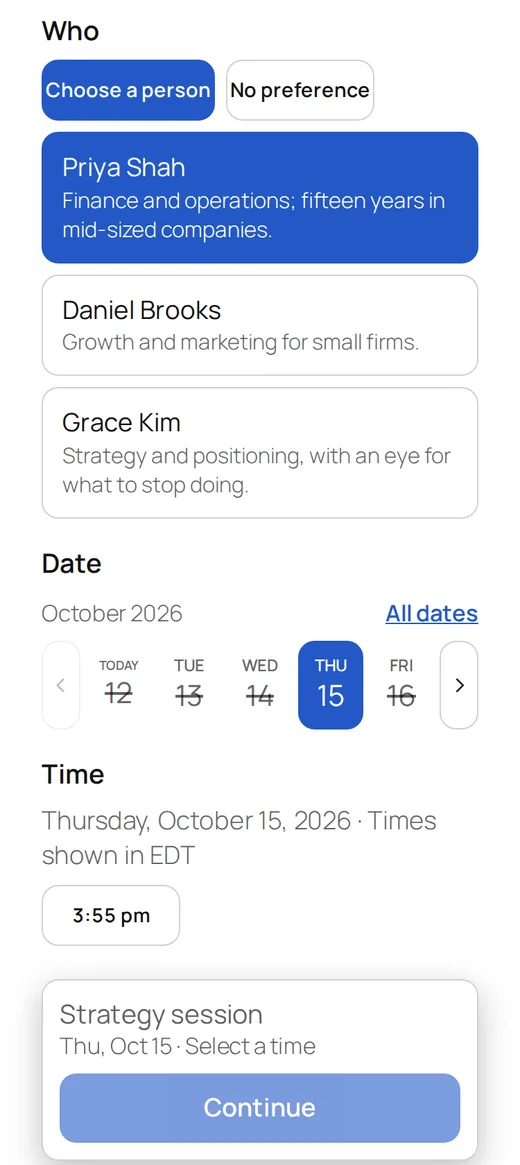
Book and pay in a few taps, on any phone.
- One booking page: service, who, date, time, details, payment.
- Online or at the office: each service is at the office, online, or the client’s choice.
- Online meetings that just work: each consultant can have their own meeting link, and the client sees the time where they are, with the time zone named.
- A page for each booking: clients see it, add it to their phone calendar or cancel it themselves. Changing the time is up to you.
- Booking for someone else: a client ticks a box and gives the name of the person who is coming.
At the desk
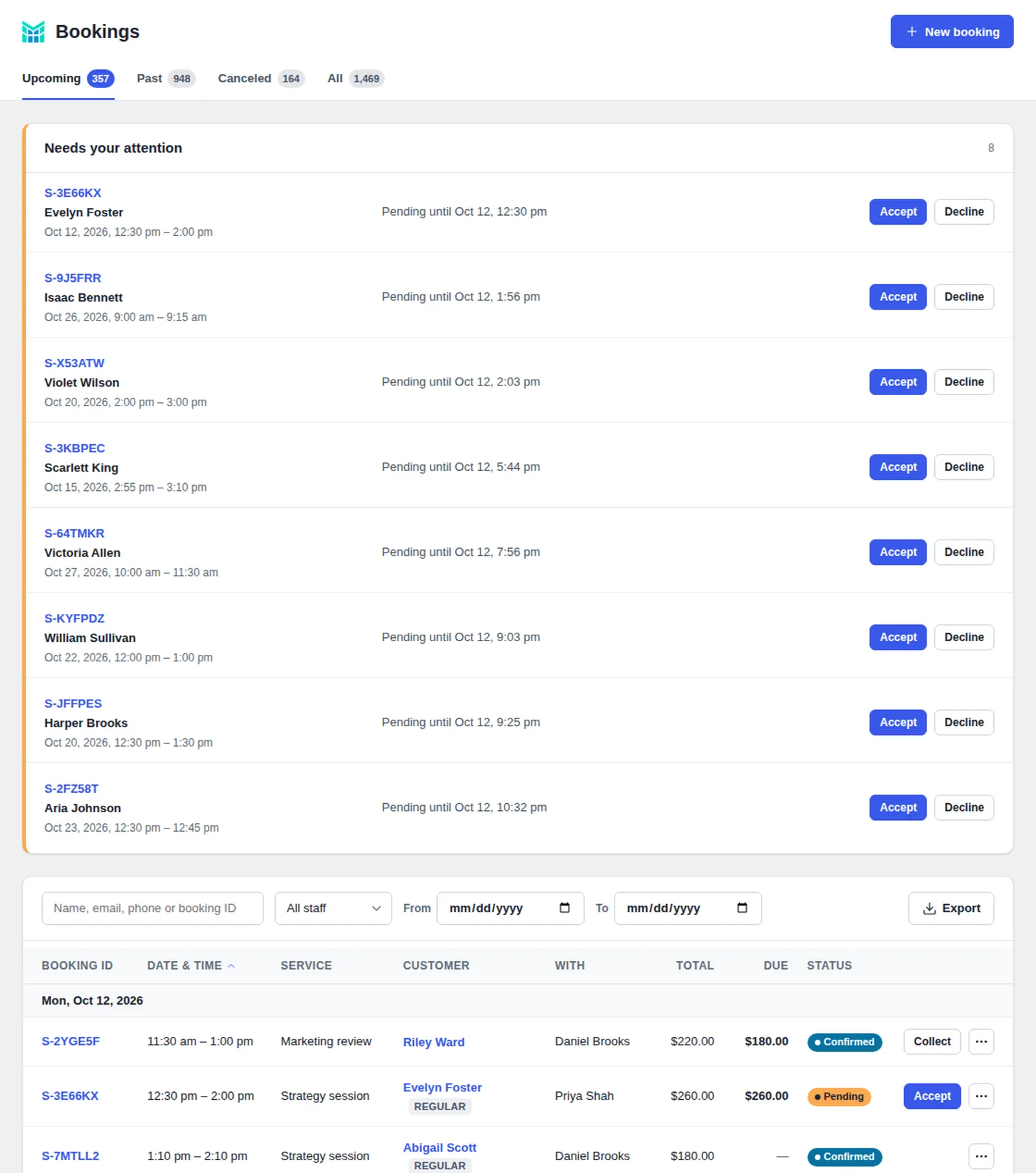
The whole day in one place.
- Day and week views, and a list of every booking.
- Bookings at the desk: book a client in yourself, in person or on the phone.
- Change a booking: the time, the person, the service, add-ons or the price. Move it to another person, or cancel it.
- Arrived and no-show: mark who came. Once a client is marked arrived, they can’t cancel online.
Money
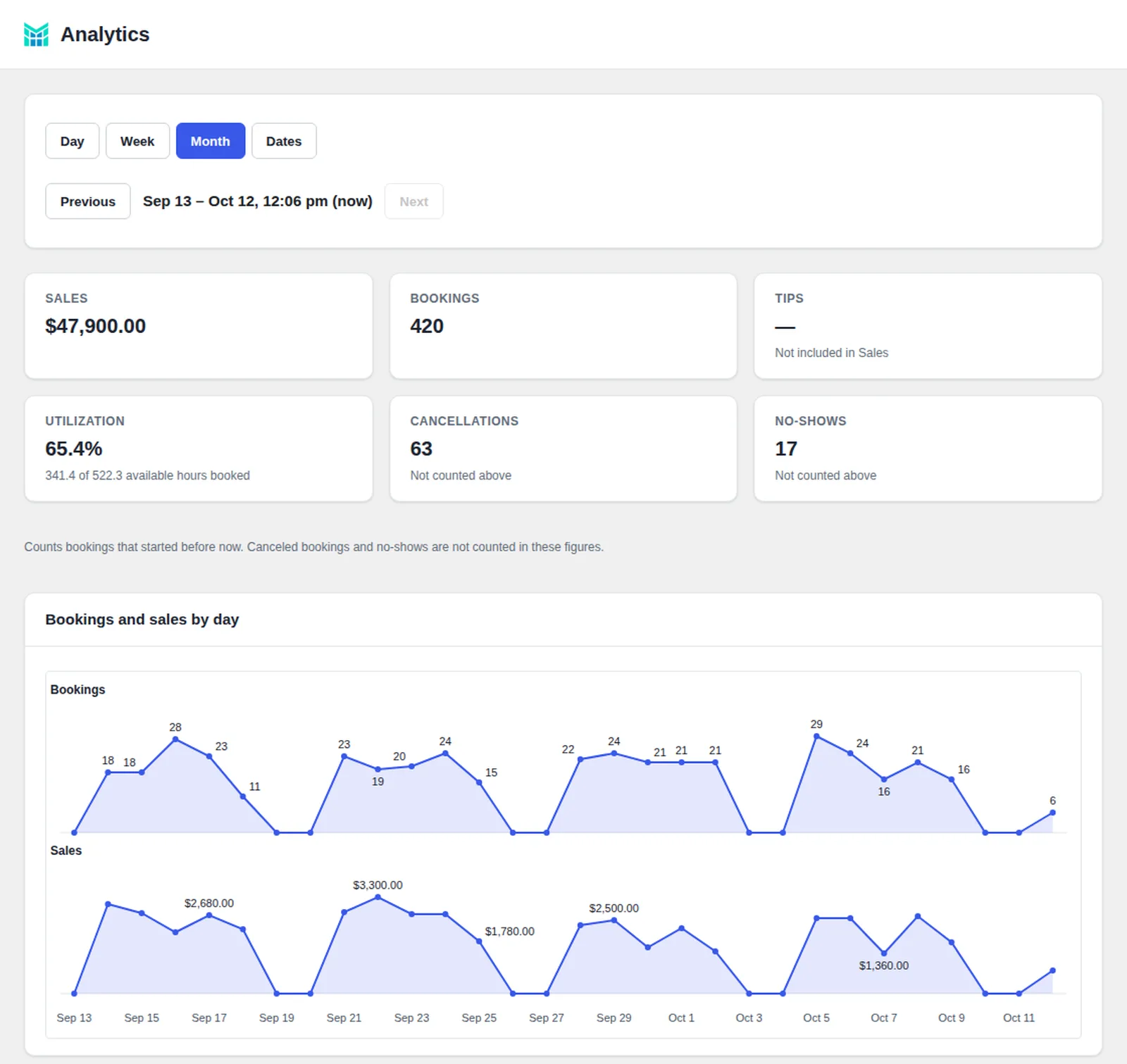
Paid into your own account.
- Three ways to take payment: nothing online, a deposit set on each service (a fixed amount or the full price), or the full amount up front, through Stripe or PayPal.
- Refund rules you set: a deposit comes back in full until a cutoff you choose (24 hours before to start with) or never; a full payment comes back by a percentage before the cutoff and another after it. You send each refund from the booking.
- Sales tax, set once for the whole business: added to your prices, or already in them.
- Tips, kept apart: record a tip against the staff member. It is not part of sales, payments or refunds.
- Analytics for the whole business: sales, the tips you recorded and how much of your open time is booked. Export the figures, and the payments and refunds, as CSV.
Customers
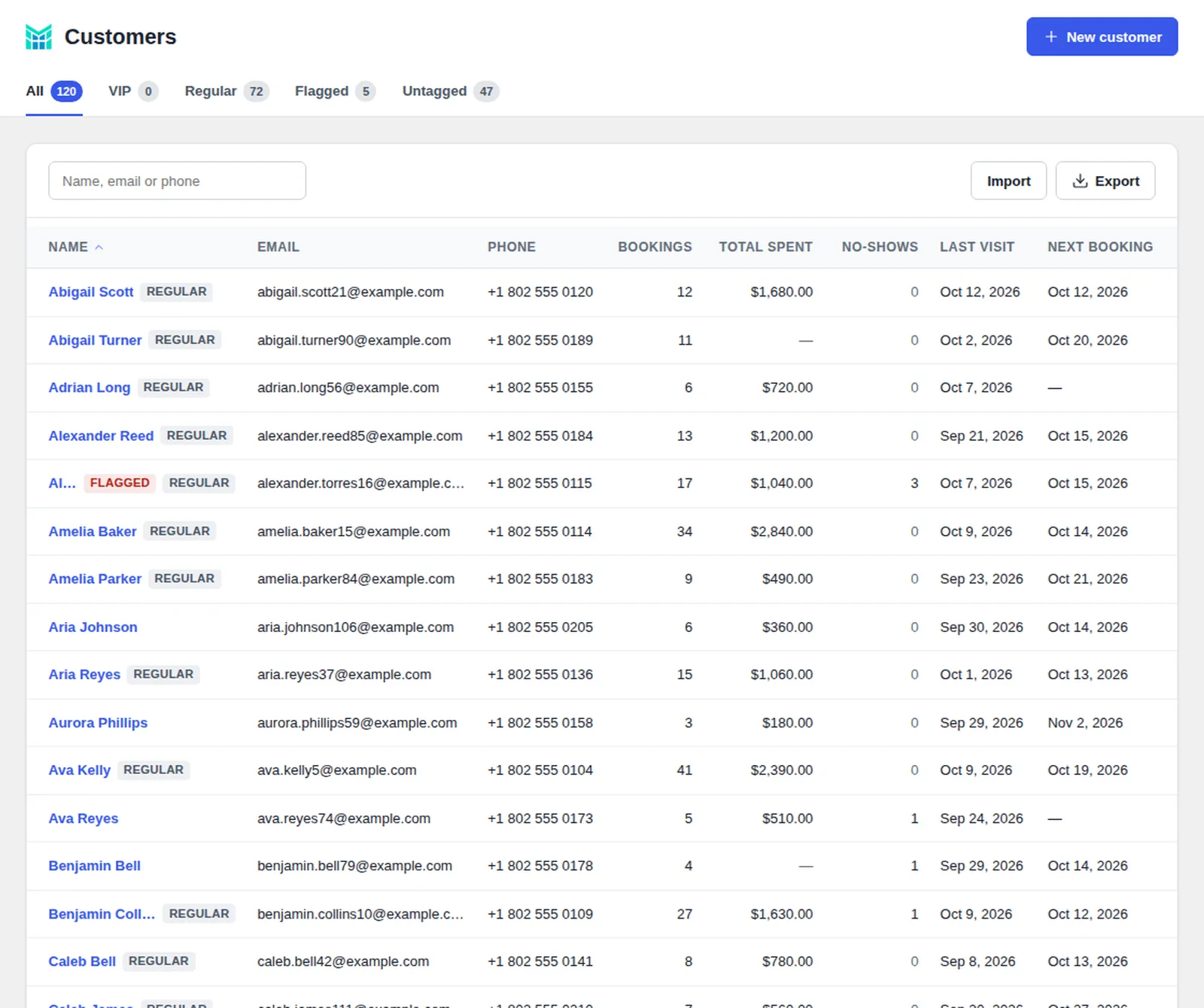
Know your regulars.
- Tags: VIP, Regular and Flagged, each with its own tab in the list. A flagged client pays the full amount when booking online.
- A page for each client: what they have spent, their tags and their no-shows.
- Import clients from a CSV file: new clients only, and an email you already have is skipped. Export the list the same way.
- Emails in your words: change the subject, opening and closing of each email to clients, and send a notice to everyone booked at a date and time you pick, for notices only, never promotions.
Staff and services, the way you run them
Staff, as many as you have
Each person has their own weekly hours, or follows the business hours, and their own column in the day view.
Options and add-ons
One service in several options, each with its own length and price, and add-ons with a price and extra minutes. Time can be set aside after a service.
Free time in the middle
A service with a gap in the middle, such as a colour that has to set, takes other bookings in the gap.
Pick a person, or no preference
Clients choose who, or leave it to you: the system picks the available person with the least booked time that day.
At the office or online
Each staff member can have their own meeting link, with a default link for the business. Two online bookings at the same moment never share a link.
Set up in minutes
A setup wizard with a preset for each kind of business, and a Diagnostics page.
How it compares
The WordPress plugins most used for booking appointments with a staff member, compared with MarcoPlot Booking Service in their free versions. The paid versions are compared on the Pro page.
Free versions
| MarcoPlot Booking Service | LatePoint | Amelia Lite | Bookly | |
|---|---|---|---|---|
| Online payments (Stripe, PayPal) | Yes | Yes | No | No |
| Deposits | Yes | Yes | Not stated | No |
| Refund to the card from the booking | Yes | No | No | Not stated |
| Sales tax | Yes | No | No | No |
| Staff members | Unlimited | Limited | Limited | 1 |
| Each staff member’s own weekly hours | Yes | Not stated | Yes | Yes |
| Customer can leave the staff member to us (“any available”) | Yes | Not stated | Not stated | Not stated |
| One service in several lengths, each with its own price | Yes | No | No | Not stated |
| Add-ons to a service | Yes | No | No | No |
| A break in the middle of a service that takes other bookings | Yes | Not stated | Not stated | Not stated |
| Own online meeting link for each staff member | Yes | Not stated | No | No |
| Customer cancels from a link, no account needed | Yes | From a customer account | Not stated | Not stated |
| Reminder email | Yes | No | No | Yes |
| Mark arrived and no-show | Yes | Not stated | Not stated | Not stated |
| Import customers from a CSV file | Yes | Not stated | Yes | No |
Checked on October 12, 2026 on each vendor’s own website and on WordPress.org. “Not stated” means we could not find it in the vendor’s own pages. Prices and features change, so check the vendors’ pages: LatePoint, Amelia, Bookly. Names belong to their owners.
What it needs
WordPress 6.5 or later and PHP 8.1 or later. For online payment, a Stripe or PayPal account of your own: clients pay you directly, and MarcoPlot takes no commission and no fee per booking.
Besides the payment provider you choose, the plugin connects out only from the Feedback page, which sends only what it lists, and only when you press Send.